 orka
Chat Widget Preview
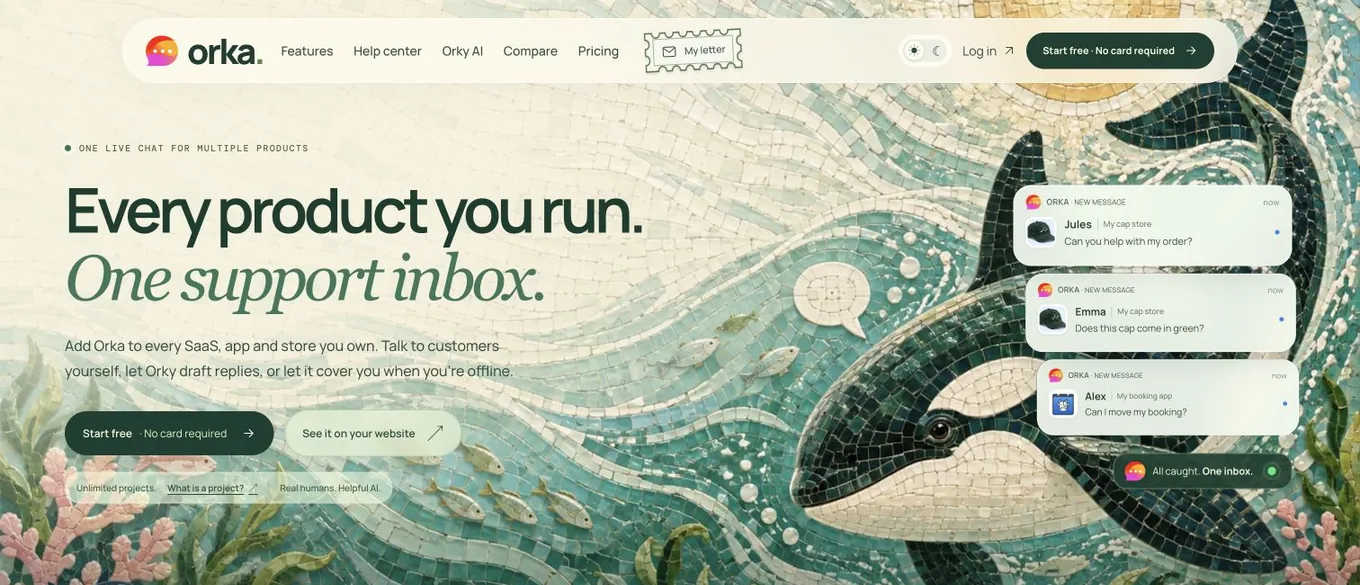
See how Orka looks on your website. Change the greeting and colors, open the launcher and try a conversation.

Widget settings



Test messages stay in this preview.
How it works
Start with the Orka homepage or choose a background from your own site. Switch between the People and Classic launchers, edit your team name and greeting, and send a local test message. Choose Desktop or Mobile to see how the widget fits at each width.
Worked example
To check the mobile experience on a product page, upload a screenshot from your phone, choose Mobile and open the launcher. Try your longest welcome message and send a test reply to see how the conversation fits.
Frequently asked questions
Can I preview the widget on my own website?
Choose Website and enter your public domain to load its homepage. If the site blocks previews or you want to see a specific product or checkout, choose Upload and use a screenshot from your device.
Which parts of the chat widget can I customize?
Change the team name, accent color, greeting and launcher style. The changes appear immediately. Close the conversation to see the launcher in its position on the page.
Where do my test messages and uploaded screenshots go?
Test messages and uploaded screenshots stay in this tab. Choosing Website sends the public domain to Orka to check whether the homepage can be previewed. Refreshing the page clears your preview.